
Before You Connect AI to Your Shared Drive, Find Out What's In It
Shared drives are organized around the job that created each file. An AI tool reads across all of them at once.
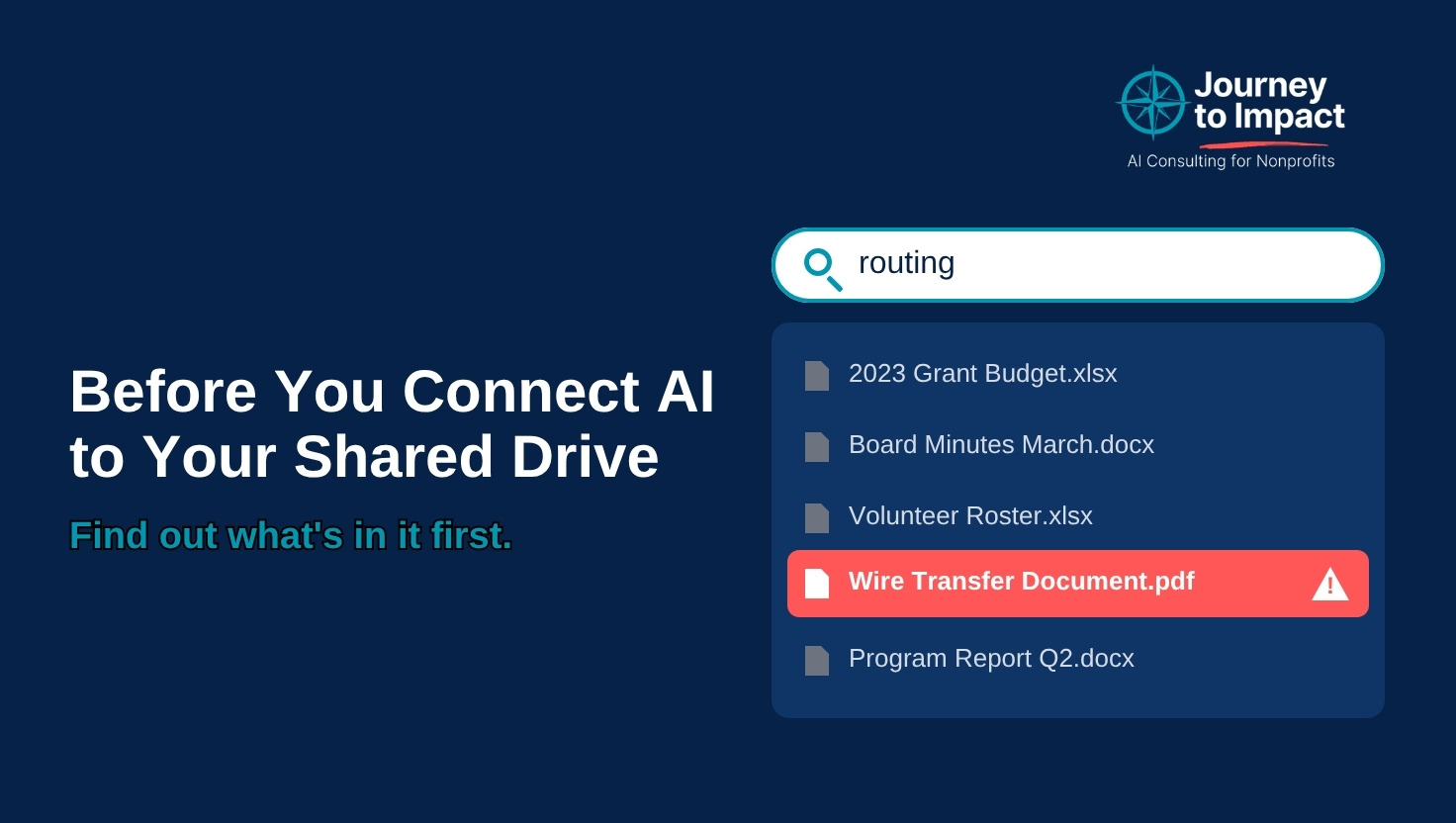
Search your shared drive for the word “routing.” Whatever comes back is roughly what an AI tool connected to that drive can find when someone asks it a question.
A colleague of mine learned this on a client project recently. They build AI tools for nonprofits, and the client had given them access to its shared grant folders so the tool could work from past applications. Before letting the AI read anything, my colleague told it not to open any files and asked only for a description of what the folders held. The AI came back with a note that one file looked sensitive. It was called “wire transfer document.”
My colleague went and looked. Every folder under that grant, which ran for several years, held wire transfer instructions for the organizations involved. They paused the project, wrote down every location, and handed the list back to the client. The person who administered the drive did not appear to know the files were there. Nothing went wrong, because the check happened before the AI read the folders.
Why the file was there
The way my colleague explained it has stuck with me. For a finance person who needed to know where the money was going, the wire instructions made complete sense in that folder. As something to feed an AI, they presented a significant risk.
Shared drives are organized around the job that created each file. The grant folder holds what the grants team and finance needed to carry a grant through its life, and at the time that included bank details. Over five or ten years, dozens of people add files for their own good reasons, and keeping the drive tidy is rarely anyone’s written responsibility. That is how most working organizations’ drives look.
An AI tool connected to that drive reads across every job at once. Copilot inside Microsoft 365, Gemini inside Google Workspace, and ChatGPT or Claude connected to SharePoint or Google Drive all work from whatever the person using them already has permission to open. They see the same files that person could already reach. The difference is how easily those files can be found, because a file nobody would come across by browsing can now turn up in the answer to an ordinary question.
In August I wrote about the AI policy we wrote for a real nonprofit, including three buckets for deciding what may go into an AI tool and the choice to work from a separate folder that staff copy files into deliberately. That approach works when you control how the tool is set up. Many organizations are in a different position, because the tool arrives already connected to the drive, through a Microsoft license or a feature inside software they already use. For them, the check has to happen on the drive itself.
The one-hour check
One person can do this in an hour. The best choice is someone who knows the drive well and has permission to see most of it, such as an operations manager or office manager.
Pick five folders (10 minutes). Choose the ones an AI tool is most likely to be pointed at or asked about first. For most organizations that means development, finance, programs, human resources, and the shared folder everyone can open.
Search them (20 minutes). Run each of these through the drive’s search, one folder at a time: routing, account number, wire, SSN, social security, date of birth, W-9, and the name of your donor database, since exports usually carry it in the file name. SharePoint and Google Drive both search inside documents as well as file names. Scanned PDFs are the exception, because a scan is a picture of text that search often cannot read, so open anything in those five folders that looks like a scanned form.
List what is there without opening it (15 minutes). This is my colleague’s step, and it catches files the search terms miss. If your organization already has an approved AI tool connected to the drive, ask it to describe what each folder contains using file and folder names only, without opening any files, and to point out anything that looks sensitive. If you do not have an approved tool, or you would rather keep file contents out of it entirely, ask your IT provider for a plain list of the file names in those five folders, which takes them a few minutes. Paste only the list into the AI and ask the same question. Either way, go and look at whatever it flags yourself.
Check who can open each folder (15 minutes). In SharePoint, open the folder’s access settings. In Google Drive, open its share settings. Look for groups that include everyone in the organization, links that work for anyone who has them, and people who left months ago. Write down who can open each folder.
What to do with what you find
Some files belong where they are. Finance may genuinely need the wire instructions in that grant folder. In that case, restrict the folder to the people who need it, so that an AI tool used by anyone else cannot reach it.
Some files have outlived their purpose. An intake spreadsheet from a program that ended three years ago can usually be deleted, following whatever your records retention rules require.
The rest can move into a restricted folder with named access. Keep a short list of what moved and where, so nobody spends an afternoon hunting for it later.
Then decide when to run the check again. I would run it before any new AI tool or integration is connected to the drive, and once a year after that. The first pass takes the full hour, and later ones go faster because most of the drive has already been looked at.
If you want to talk through what this looks like for your organization, grab a free 30 minutes on my calendar: https://calendar.app.google/VzDvwVEWuUdGQgAY6
Is your team using AI with no rules yet?
Book a free call about an AI policy that fits your organization.
Book a free 30-minute call